
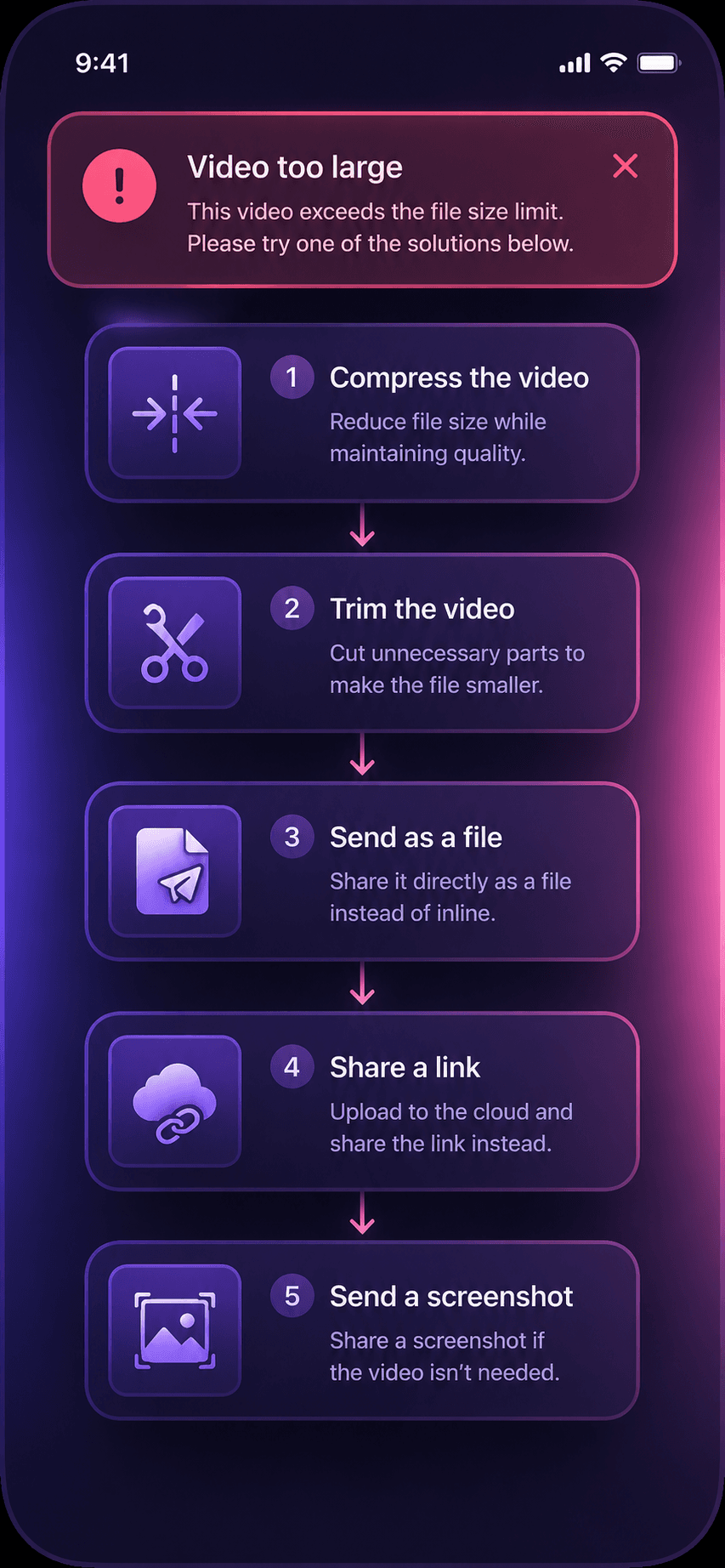
WhatsApp rejects videos larger than 16MB when sent as video messages. This is the single most common reason your video "fails to send." The good news: 16MB is enough for a clean, watchable video if you compress it properly. Here are five ways to fix the problem, ranked from fastest to most manual.
Why WhatsApp Says "Video Too Large"
WhatsApp enforces two separate file size limits:
- Video messages (inline preview): 16MB maximum. This is the limit you hit when you try to send a video the normal way.
- Document attachments: 2GB maximum. Sent as a downloadable file with no inline preview.
When your video exceeds 16MB, WhatsApp either blocks the send entirely or silently converts it to a document. The recipient gets a file they have to tap to download, with no preview thumbnail and no auto-play.
A typical 30-second phone video recorded at 1080p is 50 to 80MB. That is 3 to 5 times over the limit before you even press send.
Method 1: Compress with CompressYourVideo (Fastest)
The fastest fix is to compress the video to fit within WhatsApp's limit.
- 1Go to CompressYourVideo.com (or open the Android app)
- 2Select WhatsApp as your target platform
- 3Upload your video
- 4Download the compressed version (automatically sized to 15MB with a safety margin)
The tool calculates the exact bitrate your video needs based on its duration, so a 20-second clip gets more bitrate per second (better quality) than a 3-minute clip.
Method 2: Send as a Document Instead of a Video
If quality is your top priority and compression is not an option, send the video as a document.
- 1Open your WhatsApp chat
- 2Tap the attachment icon (paperclip or + icon)
- 3Select Document instead of Gallery or Camera
- 4Browse to your video file and send it
The recipient gets the full-quality file (up to 2GB), but they have to manually download and open it. There is no inline preview or auto-play.
Method 3: Trim Before Sending
Every second of video consumes file space. If your 2-minute video has 30 seconds of actual content, trimming it down can get you under 16MB without any compression at all.
- 1Open the video in your phone's gallery app
- 2Use the built-in trim tool to cut to the essential segment
- 3Save the trimmed version
- 4Send via WhatsApp
Method 4: Record at 720p from the Start
Most phones default to 1080p or 4K recording, which produces unnecessarily large files for WhatsApp sharing.
- 1Open your camera app settings
- 2Change video resolution to 720p (1280x720)
- 3Set frame rate to 30fps (not 60fps)
A 30-second 720p/30fps video is roughly 15 to 25MB. Many clips will already fit within WhatsApp's limit without any compression. On a phone screen, 720p and 1080p are virtually indistinguishable.
Method 5: Share via a Cloud Link
For very long videos where quality matters (birthday speeches, event recordings, travel footage), skip the attachment entirely.
- 1Upload your video to Google Drive, Dropbox, or iCloud
- 2Generate a shareable link
- 3Paste the link into your WhatsApp chat
The recipient streams or downloads at full quality. No size limit, no compression.
How Much Quality Do You Actually Lose at 16MB?
This depends entirely on duration.
- 15 to 30 second clips: Barely any visible difference. At 15MB, a 30-second video gets roughly 4Mbps of video bitrate, which is clean 720p.
- 1 to 2 minute clips: Slight softening. You get about 1.5 to 2Mbps, which is watchable at 720p but noticeably less sharp than the original.
- 3 to 5 minute clips: Visible quality drop. At 0.4 to 0.8Mbps, the video looks soft and fine details are lost. Consider trimming or sending as a document.
Here is something most people do not realize: WhatsApp re-encodes every video you send, regardless of the file size. A 15.9MB file and a 100MB file sent to the same person often look nearly identical on the recipient's end, because WhatsApp compresses both to its own internal target. Pre-compressing to 15MB means you control the quality.
Frequently Asked Questions
Does WhatsApp compress videos automatically?
Yes. WhatsApp applies its own compression to every video sent as a video message, even if your file is already under 16MB. Pre-compressing gives you control over which quality tradeoffs are made.
Can I send 4K video on WhatsApp?
You can, but WhatsApp will re-encode it to a much lower resolution. There is no benefit to sending 4K. Compress to 720p before sending for the best balance of quality and file size.
What is the maximum video length for WhatsApp?
WhatsApp does not enforce a time limit on video messages, only a file size limit. However, the 16MB cap effectively limits most videos to about 3 minutes at watchable quality.