
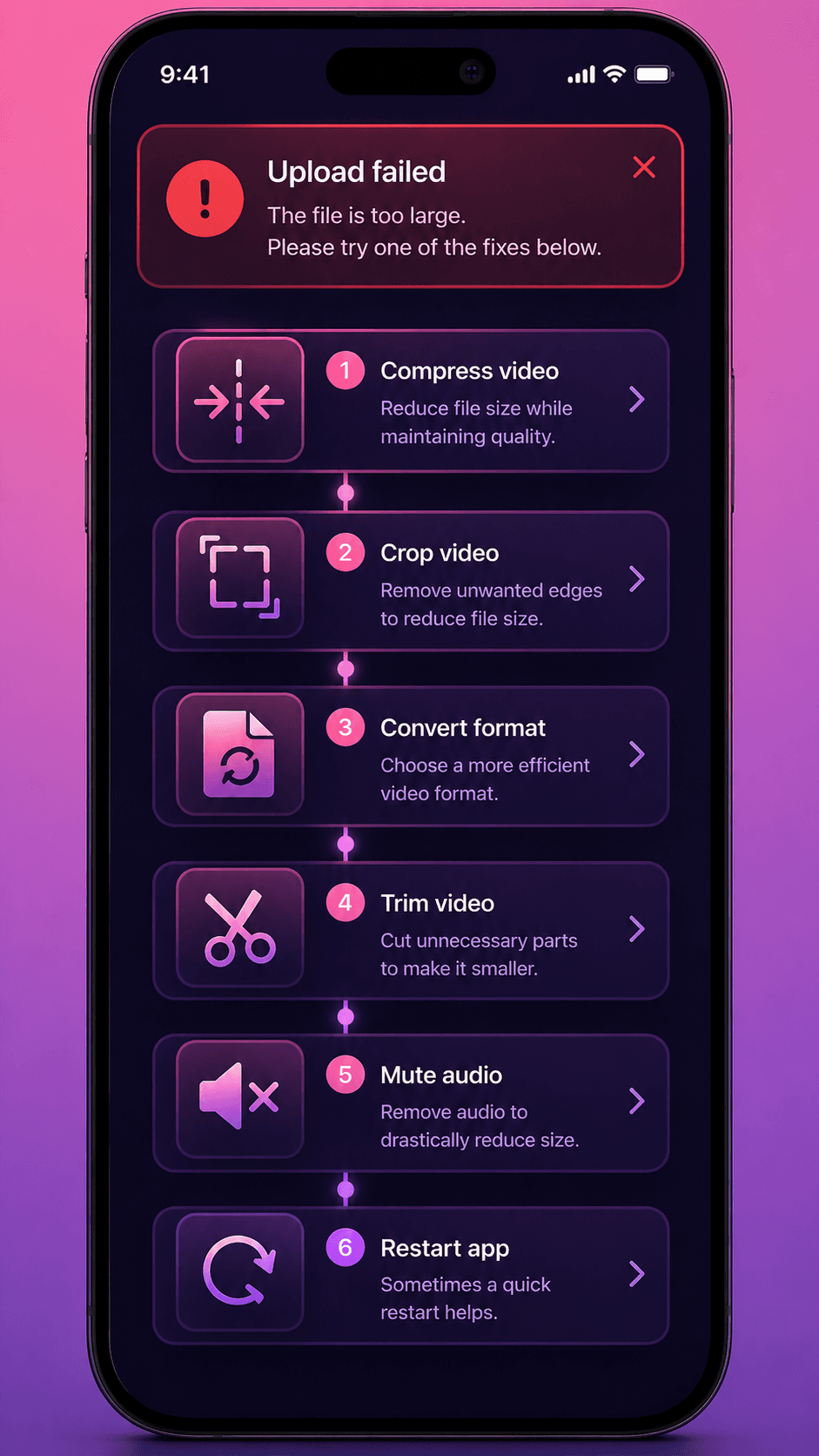
Instagram Reels upload failures are rarely caused by file size. The actual causes are wrong video codec, incorrect aspect ratio, or a corrupted file. If your Reel keeps failing to upload, you are probably dealing with a format issue, not a size issue.
Instagram Reels Specs (2026)
- Resolution: 1080x1920 (9:16 vertical) recommended
- Aspect ratio: 9:16 (vertical). 1:1 and 4:5 are accepted but get cropped or letterboxed.
- Codec: H.264 video, AAC audio
- Container: MP4 or MOV
- Maximum file size: 4GB
- Maximum duration: 90 seconds in feed, up to 15 minutes for longer uploads (some accounts have 20-min rollout)
- Frame rate: 30fps recommended
The Real Reasons Uploads Fail
Wrong Codec
This is the most common hidden cause. If your video was recorded with HEVC (H.265), VP9, or AV1, Instagram may reject it or fail silently during processing.
Fix: Re-encode to H.264 using CompressYourVideo or HandBrake. Select Instagram as your target platform and the tool will output the correct codec automatically.
Wrong Aspect Ratio
Instagram Reels are designed for 9:16 vertical video. If you upload a 16:9 horizontal video, Instagram adds black bars. Some horizontal videos at unusual resolutions can trigger processing failures.
Fix: Crop or letterbox your video to 1080x1920 before uploading.
Corrupted File
If you stopped a recording abruptly or transferred a file over a flaky connection, the file may be technically corrupted even though it plays fine on your device. VLC is forgiving about corruption. Instagram is not.
Fix: Re-encode the entire file through CompressYourVideo or HandBrake. This creates a fresh, clean MP4.
Audio Issues
Instagram requires AAC audio. If your video has no audio track at all, or uses an uncommon audio codec (like PCM, FLAC, or Opus), the upload may fail.
Fix: Re-encode with AAC audio. If your video intentionally has no audio, add a silent audio track before uploading.
The Double-Compression Trap
This is the most misunderstood problem with Instagram uploads.
- 1You record a video (original quality)
- 2You compress it aggressively to save upload time
- 3You upload to Instagram
- 4Instagram re-encodes your already-compressed video with its own compression
The result: two rounds of compression, each removing quality.
The right approach: Export your video at high quality (5 to 10Mbps at 1080x1920) and let Instagram handle the final compression. Give Instagram clean, high-quality input, and its encoder produces better output.
If you need to compress before uploading (to save mobile data), target 50 to 100MB for a 60-second Reel.
Instagram Story vs. Reels vs. Feed Post Specs
Instagram Stories
- Resolution: 1080x1920 (9:16)
- Max duration: 60 seconds per story segment
- Max file size: ~100MB recommended
- Codec: H.264/AAC in MP4
Instagram Reels
- Resolution: 1080x1920 (9:16)
- Max duration: 90 seconds (feed Reels), up to 15 minutes for longer uploads
- Max file size: 4GB
- Codec: H.264/AAC in MP4
Instagram Feed Posts (Video)
- Resolution: 1080x1350 (4:5 portrait) or 1080x1080 (1:1 square)
- Max duration: 60 minutes
- Max file size: 4GB
- Codec: H.264/AAC in MP4
All three formats benefit from the same principle: upload high quality and let Instagram handle the final encoding.
Step-by-Step Fix for Failed Uploads
- 1Check your internet connection: Upload failures during transfer look identical to format errors.
- 2Update Instagram: Outdated app versions sometimes have encoding bugs.
- 3Re-encode the video: Use CompressYourVideo with the Instagram Reels preset. This fixes codec issues, aspect ratio problems, and file corruption in one step.
- 4Trim to under 90 seconds: If your video exceeds the duration limit, Instagram may fail without a clear error message.
- 5Clear Instagram's cache: On Android, go to Settings, then Apps, then Instagram, then Clear Cache. On iOS, delete and reinstall the app.
Instagram re-encodes every upload. Uploading a 50MB pre-compressed file often produces better final quality than a 200MB raw file, because Instagram's encoder handles clean, well-structured input more gracefully.