
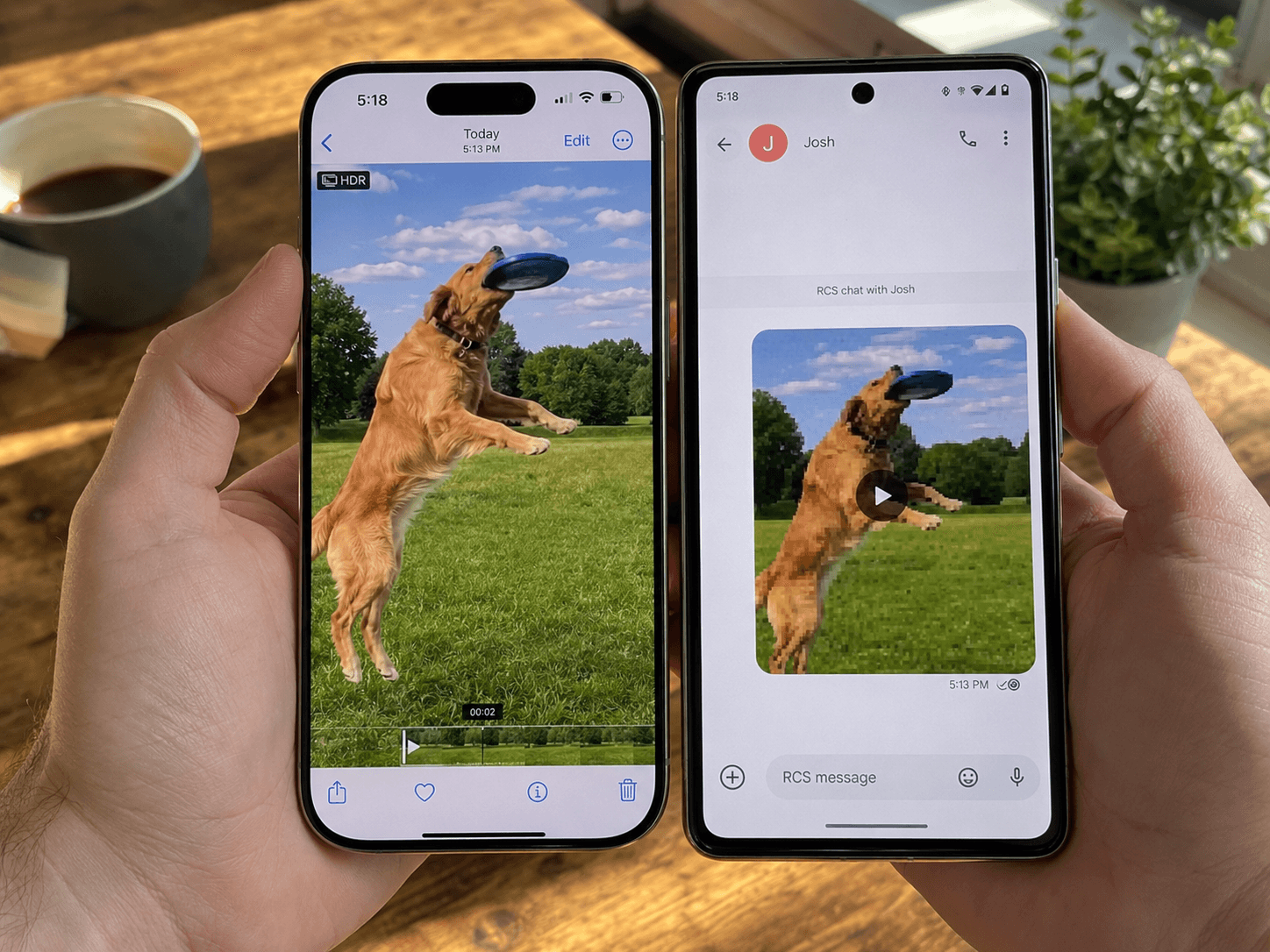
You sent a clear 4K video of your dog from your iPhone. Your friend on Android opened it and got something that looks like it was filmed through a wet shower curtain at 240p. You did nothing wrong. The video did nothing wrong. The problem sits between your carrier, your iOS version, your friend's Android phone, and an old protocol called MMS.
Apple was supposed to fix this in 2024 when iOS 18 added RCS support. In some cases it did. In a lot of real-world cases it still doesn't, because RCS is uneven across carriers, is still labeled "Beta" by Apple, and silently falls back to MMS when anything in the chain doesn't cooperate. This post is the 2026-correct breakdown of why, how to tell which protocol your message is actually using, and four ways to send a video to an Android user that arrives looking like a video.
The 30-second answer
- iPhone-to-iPhone: iMessage. Up to about 100 MB over Wi-Fi, decent quality, no surprises.
- iPhone-to-Android with RCS working: iOS 18+ tries RCS first. Quality is much better than the old MMS path, similar to a messaging app.
- iPhone-to-Android without RCS (most cases still in 2026): silent fallback to MMS. The carrier caps it at 1 to 3.5 MB depending on who you use, and your iPhone aggressively re-encodes the video to fit. A 60-second 4K clip arrives looking like 240p.
- Fix: either turn on RCS and verify it works, or send the video as an iCloud Link, or pre-compress to about 3 MB and send via MMS deliberately, or skip Messages entirely.
What changed in iOS 18 (and what didn't)
Apple shipped RCS support in iOS 18 in September 2024. iOS 26.5 in May 2026 added end-to-end encryption on top, built on GSMA's RCS Universal Profile 3.0 with the MLS protocol. Both of these moves were significant. Neither one fully solved the blurry-video problem in practice.
What RCS gets you when it works: - High-resolution photo and video sending up to about 100 MB, similar to iMessage and WhatsApp - Typing indicators and read receipts between iPhone and Android - Encrypted media (as of iOS 26.5 when both sides have RCS Universal Profile 3.0)
What RCS does NOT get you: - Universal coverage. Your carrier has to support RCS, your recipient's carrier has to support RCS, and both phones have to be configured for it. In 2026 this is reasonably common in the US but still spotty internationally and on prepaid plans. - A guarantee. Apple labels RCS as "Beta" in Settings. iOS treats it as a best-effort layer that silently falls back to MMS when any link in the chain is missing. You don't get a warning. The video just arrives looking terrible and you find out later. - Help for older iPhones. RCS requires iOS 18 or newer.
The cleanest mental model: RCS is a maybe. MMS is the failure mode. When you send a video to an Android contact, iOS quietly picks whichever one works, and if RCS doesn't work, you don't know until the recipient says "what is this potato."
How to tell if you're actually using RCS
This is the part the help articles usually skip.
- 1Settings check: Open Settings, scroll to Messages, look for a section called "RCS Messaging" or "Send as RCS." If it's there and toggled on, your iPhone is willing. Whether the message actually goes out as RCS depends on the recipient and both carriers.
- 1Bubble color: Messages with Android users will be green either way. iOS does not visually distinguish a green RCS bubble from a green MMS bubble. This is a frequent source of confusion. Green no longer means MMS by definition. It just means "not another iPhone on iMessage."
- 1Practical test: send the Android contact a high-quality photo or a 10 to 20 second video over Wi-Fi. If the recipient says it arrived crisp and at full resolution, you have RCS. If they describe it as blurry or pixelated, you're on MMS.
- 1Read receipts and typing indicators: if you see them with this contact, you're on RCS. If you don't see them, you might still be on RCS (the recipient may have disabled them) but you're more likely on MMS.
There is no built-in confirmation that "this specific message went out as RCS." Apple chose not to surface that. Until they do, you're inferring from quality and metadata.
When RCS isn't available: the MMS file size cliff
MMS is the protocol that's been carrying picture and video messages on cellular networks since the early 2000s. It's old. It was designed for tiny attachments. Each US carrier caps the file size aggressively:
| Carrier | MMS send cap | MMS receive cap |
|---|---|---|
| AT&T | ~1 MB | ~1 MB |
| T-Mobile | 1 MB | 3 MB |
| Verizon | 3.5 MB | 3.5 MB |
| Most international carriers | 300 KB to 1 MB | varies |
A 60-second 4K iPhone video is typically 170 to 250 MB. To squeeze it into AT&T's 1 MB cap, iOS aggressively re-encodes the video before sending. The result is often 240p to 360p at a bitrate of around 100 to 200 kbps. That's where the blocky compression and washed-out colors come from. iOS is doing exactly what it has to do to fit your 4K video into 1 megabyte, and the math is brutal.
The receiving side has its own cap. Even if your carrier lets you send 3.5 MB (Verizon), if the recipient is on AT&T, their carrier might reject anything above 1 MB and the message either fails or gets compressed further on the way in. The lowest cap in the chain wins.
Four ways to send a quality video to Android
1. iCloud Link via the Photos share sheet
This is Apple's official answer. From Photos, tap Share, pick the video, then choose "Copy iCloud Link." Paste the link into Messages. The recipient (on any device, including Android) clicks the link, downloads the original video at full resolution. The link expires 30 days after creation.
Quality: original resolution, no recompression. Friction: extra tap or two on your side, recipient has to tap a link rather than play inline. Catch: the recipient must have data when they tap the link. They have 30 days to download.
2. Pre-compress to about 3 MB and send via MMS deliberately
If your iPhone is going to compress the video anyway, compress it yourself first to a known good target. About 3 MB at 720p with H.264 baseline profile fits even AT&T's 1 MB cap after Apple's transport overhead is accounted for, and the quality is your choice, not the carrier's.
This is the workflow CompressYourVideo is built for. Open the site on your iPhone, pick the video, target around 3 MB, download the compressed file, share it back into Messages. The whole thing runs in your browser on the iPhone, the video never leaves your device, and the output goes out as a video message, not a tiny degraded preview. The recipient gets exactly what you compressed, not what your carrier decided to leave behind.
Why this beats the iCloud Link for some cases: - No 30-day expiry. The video stays in the message thread. - No link tap required. The recipient just sees the video inline. - Works offline once compressed. - The recipient doesn't need an iCloud login (some Android users get prompted to sign in).
3. Skip Messages entirely
WhatsApp, Telegram, Signal, and Discord all run on internet rather than carrier MMS. They have their own compression but it's usually milder than MMS compression. WhatsApp specifically targets about 1 MB for short clips and is consistently better quality than MMS for the same file size, because it has more compute and more modern codecs.
If your Android contact is willing to install something, this is the easiest fix.
4. Email with Mail Drop
Apple Mail Drop lets you attach files up to 5 GB and the recipient gets a download link. From the Mail app, attach the video as you normally would. If it's over 25 MB, Mail offers Mail Drop. The recipient gets a link valid for 30 days. Works to any email, including Android Gmail; see our email compression guide for the full breakdown of size caps by provider.
This is the cleanest path for long videos (wedding clips, full event recordings) that exceed the iCloud Link practical comfort zone.
When you'd actually use the pre-compress workflow
Most people will pick the iCloud Link approach first because Apple surfaces it. The pre-compress approach is better when:
- You send the same Android contact videos regularly. Once compressed at 3 MB, the file is small enough that it loads instantly even on slow connections.
- The recipient has bad data and won't open links reliably.
- You want the video to live inside the chat thread rather than expire.
- You want to control the exact quality and resolution rather than letting Apple's automatic re-encoder decide.
- You're sending to multiple Android contacts and don't want to generate a new iCloud Link each time.
The CompressYourVideo "Custom" preset lets you set the exact byte target. 3 MB is the safe number for any US carrier. 8 MB still arrives reasonably well over RCS and looks much better than the MMS fallback if RCS does kick in.
Quick reference
| Scenario | Best path | Why |
|---|---|---|
| iPhone to iPhone | iMessage (just send) | Up to 100 MB, no recompression |
| iPhone to Android with RCS working | Just send | RCS handles up to ~100 MB at full quality |
| iPhone to Android, unsure if RCS works | iCloud Link | Bypasses the question entirely |
| iPhone to Android, short clip, no internet on recipient | Pre-compress to ~3 MB | Survives MMS without further degradation |
| iPhone to Android, long video | Email + Mail Drop | Up to 5 GB, 30-day link |
| iPhone to Android, recipient won't tap links | Pre-compress to ~3 MB and send inline | No link, video plays in the thread |
TL;DR
iPhone videos look pixelated on Android when iOS silently falls back from RCS to MMS, and the carrier compresses the video down to 1 to 3.5 MB. Apple's iOS 18 RCS support helps when it works, but it's still "Beta" and depends on both carriers cooperating. The fastest fix when you don't want to chase RCS configuration: pre-compress the video to about 3 MB yourself before sending. That gives you control over the quality instead of leaving it to your carrier.
Pre-compress your video for iMessage and Android in your browser, no upload.