
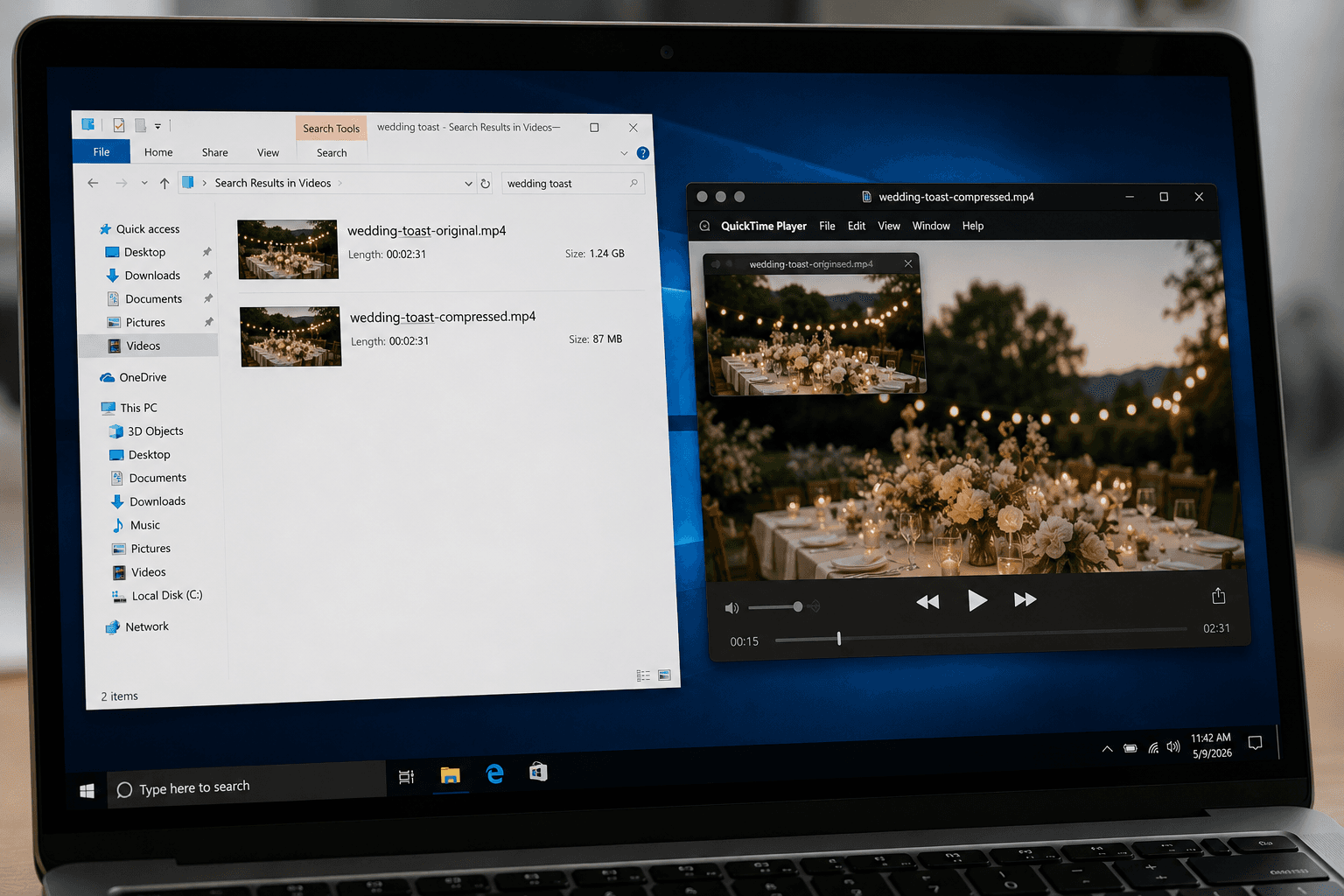
You cannot reduce a video's file size without losing some quality. That is the honest answer that most compression tools will not tell you. But here is the part that matters: for most videos, the quality loss is invisible to the human eye.
Why "No Quality Loss" Is Technically Impossible
Video compression works by discarding visual information that the encoder considers "less important." When you shrink a 200MB file to 20MB, you are removing 90% of the data. That data was there for a reason.
However, the human eye is remarkably forgiving. We are much better at perceiving overall sharpness and color accuracy than we are at noticing missing fine details in fast motion or subtle gradients. Modern encoders exploit this by removing the information you are least likely to notice.
The result: a video that is 70% smaller but looks "the same" to most viewers. It is not the same. It is very close.
What "Quality Loss" Actually Means
For non-technical readers, here are the three things that happen when a video is compressed:
- Bitrate drops: Bitrate is the amount of data per second of video. Lower bitrate means less detail per frame.
- Resolution may decrease: A 4K video scaled down to 720p has 89% fewer pixels. On a phone screen, you may not notice. On a 65-inch TV, you will.
- Compression artifacts appear: At very low bitrates, you see blocky patches, blurry edges, and "smearing" during fast motion.
Short Videos Compress Beautifully
Here is why short clips survive compression with almost no visible change: math.
A 30-second video compressed to 10MB gets a video bitrate of roughly 2.5Mbps (after accounting for audio). At 720p, 2.5Mbps looks clean and sharp.
A 30-second video compressed to 16MB (WhatsApp's limit) gets about 4Mbps. That is indistinguishable from the original on any phone screen.
The takeaway: if your video is under 60 seconds, you can compress aggressively and expect great results.
Long Videos Need a Compromise
The math works against you with longer videos.
- 1 minute at 16MB = ~2Mbps. Watchable at 720p, slightly soft.
- 3 minutes at 16MB = ~0.7Mbps. Noticeable quality loss at 720p.
- 5 minutes at 16MB = ~0.4Mbps. Very soft, significant detail loss.
- 10 minutes at 25MB = ~0.3Mbps. Unacceptable for most content. Send as a cloud link instead.
For long videos, you have three realistic options: trim to the best segment, accept a larger file size, or accept visible quality loss.
5 Things That Help More Than Any Tool
Before you even open a compressor, these five practices will reduce your file size dramatically:
- 1Trim ruthlessly: Remove every second that does not need to be there. A 90-second clip compressed to 16MB looks far better than a 5-minute clip at the same size.
- 2Record in good lighting: Dark, noisy footage is the enemy of compression. Well-lit footage compresses 2 to 3 times more efficiently.
- 3Keep the camera stable: Every shake forces the encoder to redraw the entire frame. Stabilized footage compresses much better.
- 4Record at 720p: If you know the video is destined for WhatsApp, Discord, or email, record at 720p from the start.
- 5Use H.264 MP4 format: Some recording apps default to HEVC or ProRes. H.264 is universally compatible and produces excellent quality at moderate file sizes.
How CompressYourVideo's 3 Presets Work
CompressYourVideo offers three quality presets, each making a different tradeoff:
- Small File: Prioritizes the smallest possible file size. Reduces resolution to 720p or lower, uses aggressive bitrate targets.
- Balanced: The default. Targets the best visual quality that fits within the platform's limit. The right choice for 90% of use cases.
- Best Quality: Uses the maximum file size the platform allows. Keeps original resolution when possible.
How CompressYourVideo Compares to Other Free Tools
Here is an honest comparison:
- CompressYourVideo: Browser-based and Android app. Platform presets do the math for you. No watermark, no signup. Best for people who want a fast, correct result.
- VEED.io: Browser-based editor with compression. Adds a watermark on the free tier. Good if you need editing tools too.
- Clideo: Browser-based. Simple interface. Free tier has watermarks and file size limits.
- FreeConvert: Browser-based. Manual bitrate and resolution control. No watermarks on free tier. Good for technical users.
- HandBrake: Desktop app. The gold standard for manual control. Completely free. Steep learning curve.
The Number That Matters
In blind tests, most viewers cannot distinguish a 1080p video at 5Mbps from the same video at its original 15Mbps. The compressed file is 70% smaller. The quality difference exists if you freeze a frame and zoom in, but during normal playback, it is invisible.
That is the real answer to "can I compress without losing quality?" You will lose data. You will not lose the viewing experience.