
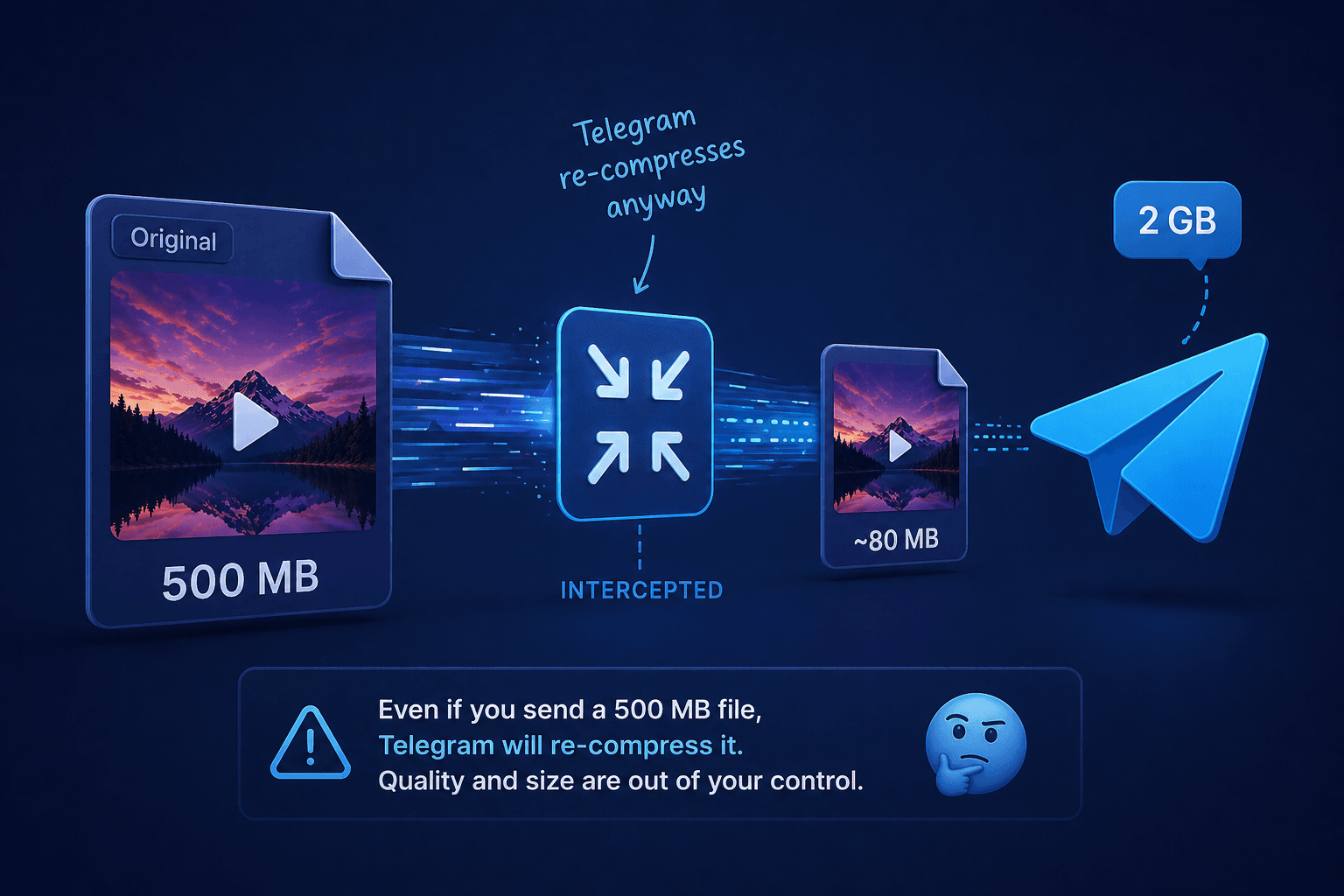
Telegram lets you send files up to 2GB (4GB with Telegram Premium). That is 125 times more generous than WhatsApp's 16MB limit. So why do your videos still look blurry when they arrive?
Because Telegram silently re-compresses every video you send through its normal video-sharing flow. The file you send and the file the recipient watches are not the same.
How Telegram Handles Your Videos
When you tap the camera icon or select a video from your gallery and send it as a "video message," Telegram does three things before delivering it:
- 1Re-encodes the video at a lower bitrate (typically 1 to 2 Mbps regardless of your original quality)
- 2Caps the resolution at 720p or 1080p depending on your Telegram settings
- 3Strips metadata like original creation date and GPS location
The result: a 200MB high-quality video recorded in 4K becomes a 15MB clip that looks like it was filmed through a window screen. Telegram does this to save bandwidth and storage on its servers.
The "Send as File" Trick (and Its Drawbacks)
The standard advice is to send your video as a file instead of a video:
- 1Open a chat
- 2Tap the attachment icon (paperclip)
- 3Choose File instead of Gallery/Video
- 4Select your video
This sends the raw file without re-compression. The recipient gets the exact bytes you sent. Quality is perfect.
The problem: the recipient cannot preview or play the video inline. They have to download the full file first, which is annoying for large videos. There is no playback progress bar, no thumbnail preview, and no streaming. For a 500MB file on a slow connection, they are staring at a download bar for minutes before they can watch a single frame.
The Better Approach: Compress Before Sending as Video
Instead of choosing between "blurry but playable" and "perfect but unplayable," there is a third option: compress the video yourself to a reasonable size and send it through the normal video flow.
When you compress to a target that Telegram considers "already small enough," Telegram's re-encoder either applies minimal additional compression or skips it entirely. The result is a video that plays inline, loads quickly, and looks good.
Here is how:
- 1Go to compressyourvideo.com
- 2Click Telegram in the platform selector
- 3Upload your video
- 4Choose a quality preset (Balanced works well for most clips)
- 5Download the compressed file
- 6Send it through Telegram's normal video flow
The Telegram preset on CompressYourVideo targets a bitrate that Telegram's encoder will not aggressively re-compress. You get inline playback, a preview thumbnail, and a video that actually looks good.
What Bitrate Does Telegram Use?
Telegram's server-side encoder targets roughly:
| Your Resolution | Telegram's Target Bitrate | What You See |
|---|---|---|
| 4K (2160p) | ~2.5 Mbps | Heavily degraded, blocky |
| 1080p | ~1.5 to 2 Mbps | Noticeable softness, fine for talking-head clips |
| 720p | ~1 to 1.5 Mbps | Acceptable for most content |
| 480p | ~800 Kbps | Looks the same as your original at this resolution |
If your video is already at or below these bitrates, Telegram has nothing to cut. It passes through with minimal changes.
This is exactly what CompressYourVideo's Telegram preset does: it brings your video down to a bitrate that sits just above Telegram's floor, so the server-side pass does not degrade it further.
Telegram Premium: Does 4GB Help?
Telegram Premium raises the file size limit from 2GB to 4GB. It does not change how the video encoder works. A 3GB 4K video sent by a Premium user still gets re-compressed to the same 1.5 to 2 Mbps bitrate as everyone else.
Premium only helps if you send the video as a file (the "no re-compression" method). In that case, you can send files up to 4GB instead of 2GB. But the playability problem remains: no inline preview, no streaming.
Telegram Desktop vs. Mobile
Telegram Desktop (Windows, macOS, Linux) handles video slightly differently:
- Desktop sends videos with less re-compression than mobile. The desktop app uses a higher bitrate ceiling, so your 1080p clip may come through at 3 to 4 Mbps instead of 1.5 Mbps.
- Desktop can play files sent as documents inline if they are MP4 with H.264. Mobile cannot always do this.
- Desktop preserves original resolution more often than mobile, which sometimes downscales 4K to 1080p before sending.
If your recipient is on desktop, your video will look better regardless. But you cannot control what device the recipient uses, so compressing to Telegram's target bitrate remains the safest approach.
Group Chats and Channels
In group chats with many members, Telegram is more aggressive about compression because each video is served to many viewers. Channel posts (broadcast messages) receive the same treatment.
If you run a Telegram channel and care about video quality, the workflow is:
- 1Compress with CompressYourVideo using the Telegram preset
- 2Upload to the channel through the normal video flow
- 3Pin or link the "file" version in a reply for users who want full quality
This gives most viewers an inline preview that looks good, while full-quality seekers can download the original.
Common Mistakes
Mistake 1: Sending 4K when 1080p would do. If the video will be watched on a phone screen, 4K is wasted data. Telegram will downscale it anyway. Compress to 1080p before sending.
Mistake 2: Using the "high quality" toggle and assuming it changes everything. Telegram's "Send videos in higher quality" setting (in Settings > Data and Storage) raises the ceiling slightly but does not disable re-compression. Videos still get re-encoded.
Mistake 3: Compressing twice. If you compress a video, then Telegram compresses it again on send, you get double compression artifacts. Use CompressYourVideo's Telegram preset to hit the sweet spot where Telegram's encoder leaves your video alone.
Quick Reference
| Scenario | Best Approach |
|---|---|
| Casual clip to a friend | Send as video (Telegram quality is fine) |
| Important video (interview, presentation) | Compress with CompressYourVideo, send as video |
| Full quality required (editing, archival) | Send as file (no re-compression) |
| Channel post for many viewers | Compress first, pin file version as reply |
| Video longer than 10 minutes | Compress to 720p Balanced, send as video |
For most people, compressing to the Telegram preset and sending through the normal video flow gives the best balance of quality, playability, and download speed.