
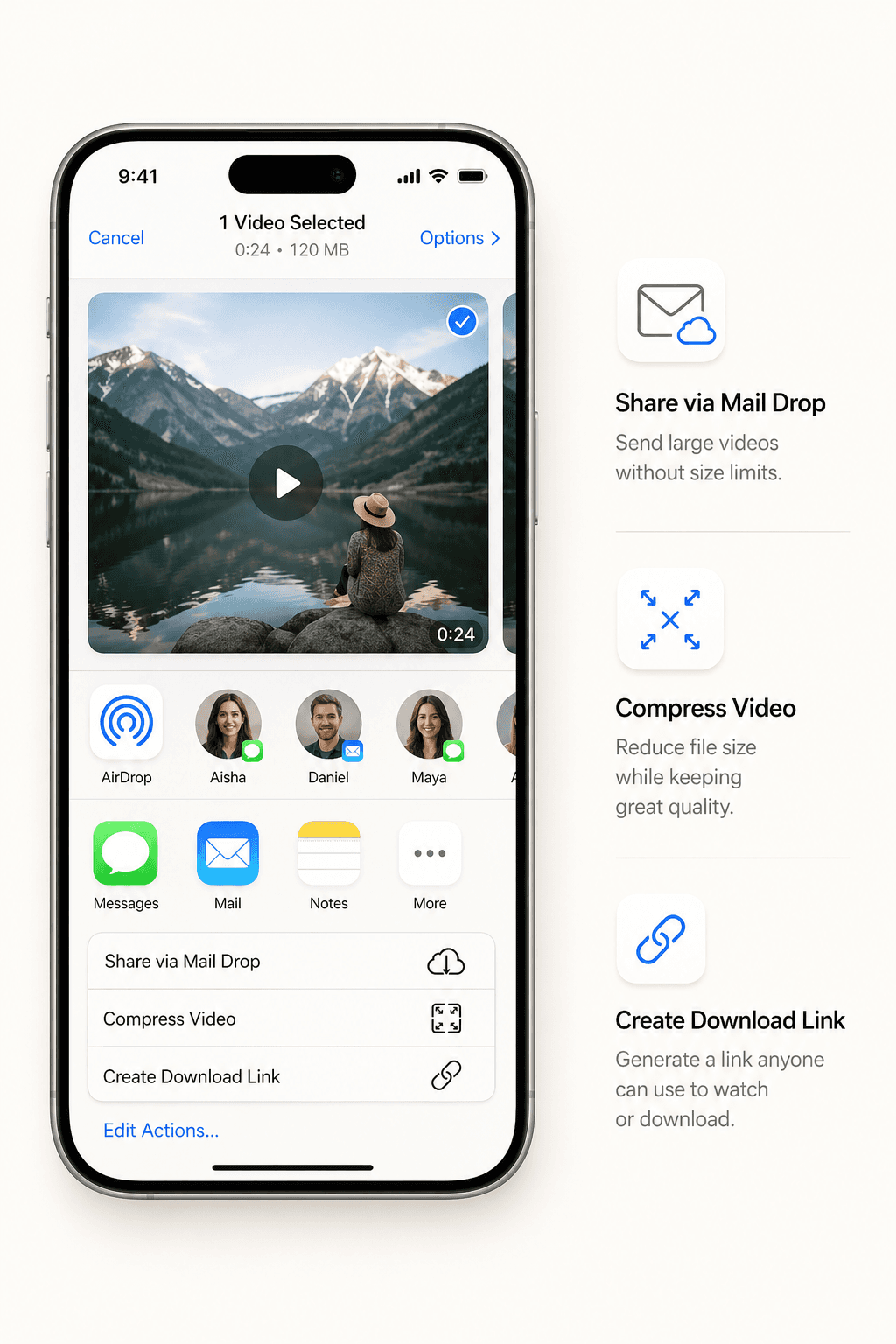
Most "compress video" guides for iPhone tell you to download an app. You do not need one. CompressYourVideo.com works directly in Safari, compresses your video right inside the browser tab using your iPhone's hardware video encoder, and saves the result to your Camera Roll. Your video file never leaves your device. No app install, no account, no upload progress bar, because there is nothing to upload.
Why You Do Not Need an App
Video compression apps on the App Store fall into two categories:
- 1Free apps with ads: Interrupt your workflow with full-screen ads between every step. Many add watermarks unless you pay.
- 2Paid apps ($3 to $10): Work well but are unnecessary for occasional use. You are paying for something a website does for free.
Browser-based compression in Safari avoids both problems. You open a website, pick a video, and download the result, all without leaving the page or installing anything.
How It Works on iPhone Without Uploading
Modern iPhone Safari (17 and above) lets a webpage talk directly to the iPhone's hardware video encoder, the same one the Camera and Photos apps use. CompressYourVideo uses this to compress your video on-device, the same way a native app would. On older iPhones running Safari below 17, the page falls back to a slower software path running inside the browser tab. Either way, the video stays on your device, never uploaded.
Step by Step: Compress in Safari
- 1Open Safari on your iPhone
- 2Go to compressyourvideo.com
- 3Tap the upload area and select Photo Library
- 4Pick the video you want to compress
- 5Select a platform (WhatsApp, Discord, Email) or choose a custom size
- 6Tap Compress Now
- 7Wait for the progress bar to finish
- 8Tap Download compressed video
The compressed video saves to your Downloads folder. You can find it in the Files app under Downloads, or tap the download arrow in Safari's toolbar.
Save the Compressed Video to Camera Roll
After downloading, the file is in your Downloads folder. To move it to your Camera Roll:
- 1Open the Files app
- 2Navigate to Downloads
- 3Tap and hold the compressed video
- 4Tap Save Video
The video now appears in your Photos app and can be shared through WhatsApp, iMessage, or any other app.
How Long Does It Take?
Compression time depends on the video length and your iPhone's hardware:
- 30 seconds (50MB video): About 5 to 15 seconds on iPhone 12+, longer on older models
- 2 minutes (200MB video): About 30 seconds to 2 minutes
- 5 minutes (500MB video): About 1 to 5 minutes
Compression runs locally on your device, so a faster iPhone finishes faster.
Does It Work on Older iPhones?
Yes. On iOS 17 and later, Safari runs the hardware-accelerated path in your browser, talking directly to the iPhone's video chip. On older Safari versions, a slower software fallback path runs in the same browser tab. Either way, no upload. Any iPhone with a recent Safari can compress, older ones just take longer.
What About Privacy?
Your video never leaves your iPhone. Compression runs entirely in Safari on your device, so there is nothing for us to receive, store, or analyze. No account is created, no cookies track you, no upload happens.
Tips for iPhone Users
Close other Safari tabs: Large videos use a lot of RAM during compression. Closing other tabs gives Safari more memory to work with, especially on older iPhones.
Plug in for long compressions: Large or 4K videos can drain battery quickly because the device handles the encode itself. If you're compressing a 5+ minute clip, plug in.
Trim before compressing: Use the built-in trim tool in the Photos app to cut your video to the essential clip before importing. Shorter videos compress faster.
Check your result before sending: After downloading, tap the file to preview it. If the quality is not good enough, go back and try a higher target size or the Best Quality preset.