
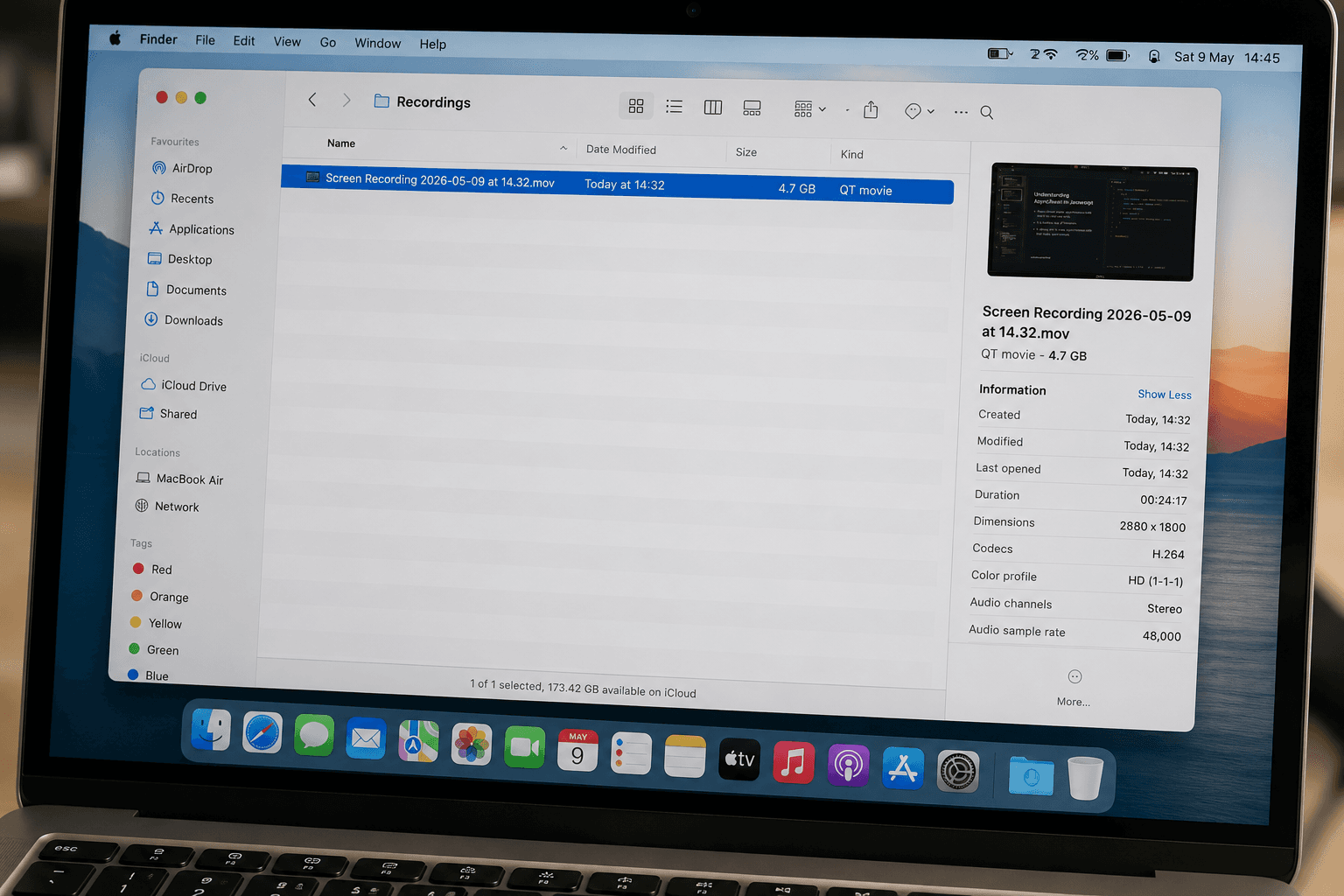
Screen recordings compress differently from camera footage, and the standard compression approach (lower the bitrate until it fits) will destroy text readability. The key is to reduce resolution before reducing bitrate, because text clarity depends on pixel density, not bitrate alone.
Why Screen Recordings Are So Large
Screen recordings produce massive files for a specific reason: high-resolution static detail.
A 4K screen recording captures 3840x2160 pixels, most of which contain sharp text, UI elements, and fine lines. Unlike camera footage (which has smooth gradients and natural motion), screen content is full of hard edges and high-contrast boundaries. Video encoders need significantly more data to preserve these details accurately.
A 10-minute 4K screen recording is typically 400 to 600MB. The same 10 minutes of camera footage at 4K might be 300 to 400MB, because natural scenes compress more efficiently.
Why Text Gets Blurry After Compression
Video encoders (H.264, H.265, VP9) are designed to compress natural video. They use mathematical models that assume smooth color transitions and organic textures. Text is the opposite: sharp edges, high contrast, no gradual transitions.
When you lower the bitrate, the encoder starts "smoothing" things it considers unimportant. For camera footage, this means slightly softer backgrounds. For screen recordings, this means blurry text edges and smeared icons.
Best Settings for Screen Recording Compression
Resolution: 720p Is Almost Always Enough
For tutorials, demos, and presentations, 720p (1280x720) provides perfectly readable text on any screen up to about 24 inches. Most viewers watch tutorials in a browser window, not fullscreen on a 4K monitor.
A 10-minute 4K screen recording is about 500MB. The same recording at 720p is roughly 60MB, with identical text readability on most screens. That is an 88% reduction from resolution alone.
If your recording includes very small text (IDE code at 8pt, dense spreadsheets), use 1080p instead.
Frame Rate: 30fps, Not 60fps
Screen recordings rarely benefit from 60fps. UI interactions and scrolling look perfectly smooth at 30fps. Dropping from 60fps to 30fps cuts the file size nearly in half.
Bitrate: Stay Above 2Mbps for Text
Text readability has a bitrate floor. Below roughly 2Mbps at 720p, text starts to show visible compression artifacts. Stay at or above 2Mbps for any screen recording that contains readable text.
At 720p and 30fps, 2Mbps produces about 15MB per minute. A 10-minute tutorial would be roughly 150MB.
Step by Step with CompressYourVideo
- 1Go to CompressYourVideo.com
- 2Upload your screen recording
- 3Select Email (25MB) or a Custom size target
- 4Choose the Balanced or Best Quality preset
- 5Download the compressed version
The Real Fix: Record at 720p from the Start
The single most impactful thing you can do is change your recording resolution before you start recording.
How to Set Recording Resolution
OBS Studio: Go to Settings, then Video. Set "Output (Scaled) Resolution" to 1280x720.
Windows Game Bar (Win+G): Go to Settings, then Gaming, then Captures. Set recording resolution to 720p.
Loom: Click the recording options, then select 720p from the resolution dropdown.
Additional Tips for Clean Screen Recordings
Increase font size: Before recording, bump your IDE, terminal, or browser font size up by 2 to 4 points. Larger text survives compression much better.
Use a clean background: Busy wallpapers and transparent terminal backgrounds add visual noise that wastes bitrate. Use a solid-color desktop background.
Avoid rapid scrolling: Fast scrolling creates massive frame-to-frame changes that consume bitrate and produce artifacts. Scroll slowly and deliberately.
Pause on important content: When showing a key code snippet, pause for 2 to 3 seconds. This lets the encoder produce a clean frame that viewers can read.
A 10-minute 4K screen recording is about 500MB. The same recording at 720p is roughly 60MB, with identical text readability on most screens. Record at the right resolution from the start, and compression becomes a minor adjustment instead of a major quality compromise.