
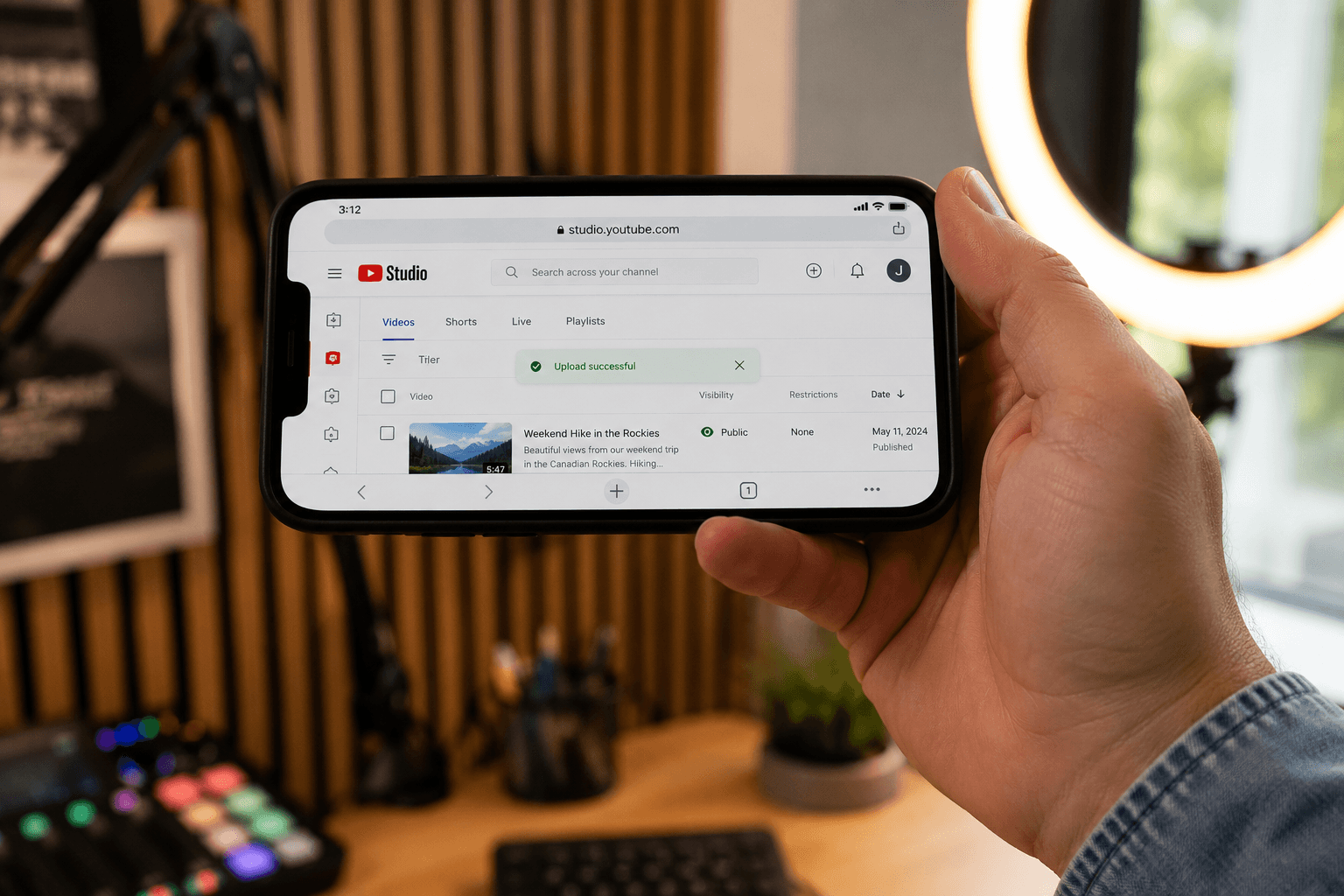
There is a counterintuitive thing about uploading videos to YouTube: the file size you upload has almost no effect on the final video quality YouTube serves to viewers. YouTube re-encodes everything you upload to its own internal specs.
So why bother compressing before upload? One reason: upload speed. A well-compressed 1080p video can be 1/5 the size of an uncompressed 1080p export, which means it uploads 5× faster. For YouTubers who upload regularly, this is an enormous quality-of-life improvement.
But there is a tradeoff. Compress too aggressively, and YouTube's re-encoder produces visibly worse output because it is encoding from your already-compressed source. Find the sweet spot where you upload faster and YouTube's re-encode looks great, and you have meaningfully improved your workflow.
Here is how to find that sweet spot.
YouTube's Official Upload Recommendations
This is what YouTube actually recommends for video uploads (from their official Creator Academy):
- Container: MP4
- Video codec: H.264 (most compatible) or H.265 (smaller files, newer)
- Audio codec: AAC, 384 kbps (stereo)
- Frame rate: same as your source (don't change it)
- Bitrate (for 1080p at 30 fps): 8-12 Mbps
- Bitrate (for 1080p at 60 fps): 12-15 Mbps
- Bitrate (for 4K at 30 fps): 35-45 Mbps
- Bitrate (for 4K at 60 fps): 53-68 Mbps
The bitrates are the sweet spot. Below them, YouTube's re-encoder produces visibly degraded output. Above them, you are just wasting upload time because YouTube discards the extra data.
The Mistake Every YouTuber Makes
Most creators do one of two things:
- 1Upload directly from their editor's "high quality" preset. Typically 50-100 Mbps for 1080p. This produces files 5-10× bigger than YouTube needs, taking forever to upload, with zero benefit to final quality.
- 1Compress aggressively to "save time". Typically targeting 5 MB total file sizes by reducing bitrate to 2-3 Mbps. This makes uploads fast but produces noticeably soft, blurry final videos because YouTube's re-encoder cannot recover quality that was thrown away.
Neither approach is right. The correct approach is to compress to YouTube's recommended bitrate (~10 Mbps for 1080p), no more, no less.
How to Hit YouTube's Sweet Spot with CompressYourVideo
For a typical 5-minute 1080p video:
- 1Open CompressYourVideo
- 2Pick Custom size target
- 3For 5 minutes at 10 Mbps, target file size is approximately: 10 Mbps × 5 minutes × 60 seconds = 3,000 megabits = 375 MB
- 4Upload your source video
- 5The compressor encodes at the bitrate needed to hit ~375 MB target
- 6Download the optimized file
- 7Upload to YouTube. It goes 3-5× faster than your editor's raw export
For a 10-minute video at 1080p, target ~750 MB. For 4K content, multiply by ~4.
Why You Should Upload More Than YouTube's Minimum
YouTube specifically says "the higher the bitrate, the better the encoding." If you are uploading content where quality really matters (high-motion gaming, fine-detail product reviews, music videos), aim for the upper end of YouTube's recommended range:
- 1080p/30 → 12 Mbps (instead of 8)
- 1080p/60 → 15 Mbps (instead of 12)
- 4K/30 → 45 Mbps (instead of 35)
The file is bigger, the upload is slower, but YouTube's re-encoder produces visibly cleaner output. For casual vlogs or talking-head content, the lower end of the range (8 Mbps for 1080p/30) is fine.
How to Tell If YouTube Re-encoded Your Video Badly
After your video processes on YouTube, click the video and look in the "Stats for Nerds" overlay (right-click on the video). You will see:
- Codec: shows what YouTube actually serves (typically VP9 or AV1, sometimes H.264)
- Bitrate: the bitrate of the version YouTube is playing back
- Resolution: the resolution YouTube has decided is appropriate
If your final video is being served at 1080p but the bitrate is below YouTube's typical 4-5 Mbps for 1080p VP9 (or 3-4 Mbps for AV1), there has been some encoding damage. This usually means your source bitrate was too low when uploading.
The fix: re-upload with a higher source bitrate.
The 4K Question
Should you upload 4K source even if you only watch in 1080p?
Yes, if you can:
- YouTube's 4K-uploaded videos get encoded with VP9 or AV1, even when downscaled to 1080p for viewing. These newer codecs produce visibly better 1080p than YouTube's H.264 encode of natively-uploaded 1080p video.
- 4K → 1080p downscale on YouTube's side is high quality (better than your editor's downscale typically)
- Better encode means better final quality, even at 1080p playback
The downside: 4K uploads are 4× the file size, taking 4× longer to upload. If you have slow internet, this might not be worth it.
When Compressing BEFORE Upload Hurts You
If your editor has a "Smart Render" or "Direct Stream Copy" feature, using it to export keeps your edited video at native quality without re-encoding. You can then compress that file with CompressYourVideo and upload, getting the benefit of fast upload without the editor adding its own re-encode step.
But if you compress an already-exported video that was already encoded by your editor, you are now putting it through TWO encode passes (editor + CompressYourVideo + YouTube). Each pass introduces some artifact loss. For most videos this is invisible, but for high-motion or detail-heavy content, you will see some softening.
The cleanest workflow:
- 1Edit your video in your editor of choice
- 2Export with highest possible bitrate (or "Direct Stream Copy" if that's an option)
- 3Compress with CompressYourVideo to YouTube's recommended bitrate
- 4Upload to YouTube
If you can skip step 3 and your editor exports directly to YouTube's recommended bitrate (around 10 Mbps for 1080p), even better. Some editors (DaVinci Resolve, Premiere Pro) have YouTube-optimized export presets that do exactly this.
A Word on Codecs
YouTube accepts both H.264 and H.265 (HEVC) for upload. H.265 produces files about 30-40% smaller at the same visual quality, which means faster uploads.
The catch: H.265 requires a decoder. Modern Macs and PCs have hardware H.265 decoders, but YouTube's processing pipeline is the same either way. They re-encode to their own format regardless. So you save upload time by uploading H.265, with no quality penalty.
CompressYourVideo defaults to H.264 for maximum compatibility (some older systems cannot decode H.265 even for upload). If you know your system supports H.265 and you want faster uploads, you can switch.
Quick Reference: YouTube Upload Targets
| Resolution / FPS | Recommended Bitrate | Target File Size (per 10 min) |
|---|---|---|
| 720p / 30 fps | 5 Mbps | 375 MB |
| 1080p / 30 fps | 8-12 Mbps | 600-900 MB |
| 1080p / 60 fps | 12-15 Mbps | 900-1,125 MB |
| 1440p / 30 fps | 16 Mbps | 1.2 GB |
| 4K / 30 fps | 35-45 Mbps | 2.6-3.4 GB |
| 4K / 60 fps | 53-68 Mbps | 4-5 GB |
TL;DR
YouTube re-encodes every video you upload, so over-compressing is wasted bandwidth. Compress to YouTube's recommended bitrate for your resolution (~10 Mbps for 1080p). Uploads go 5× faster than raw editor exports while final quality is the same. Don't go below YouTube's minimums or quality suffers.