
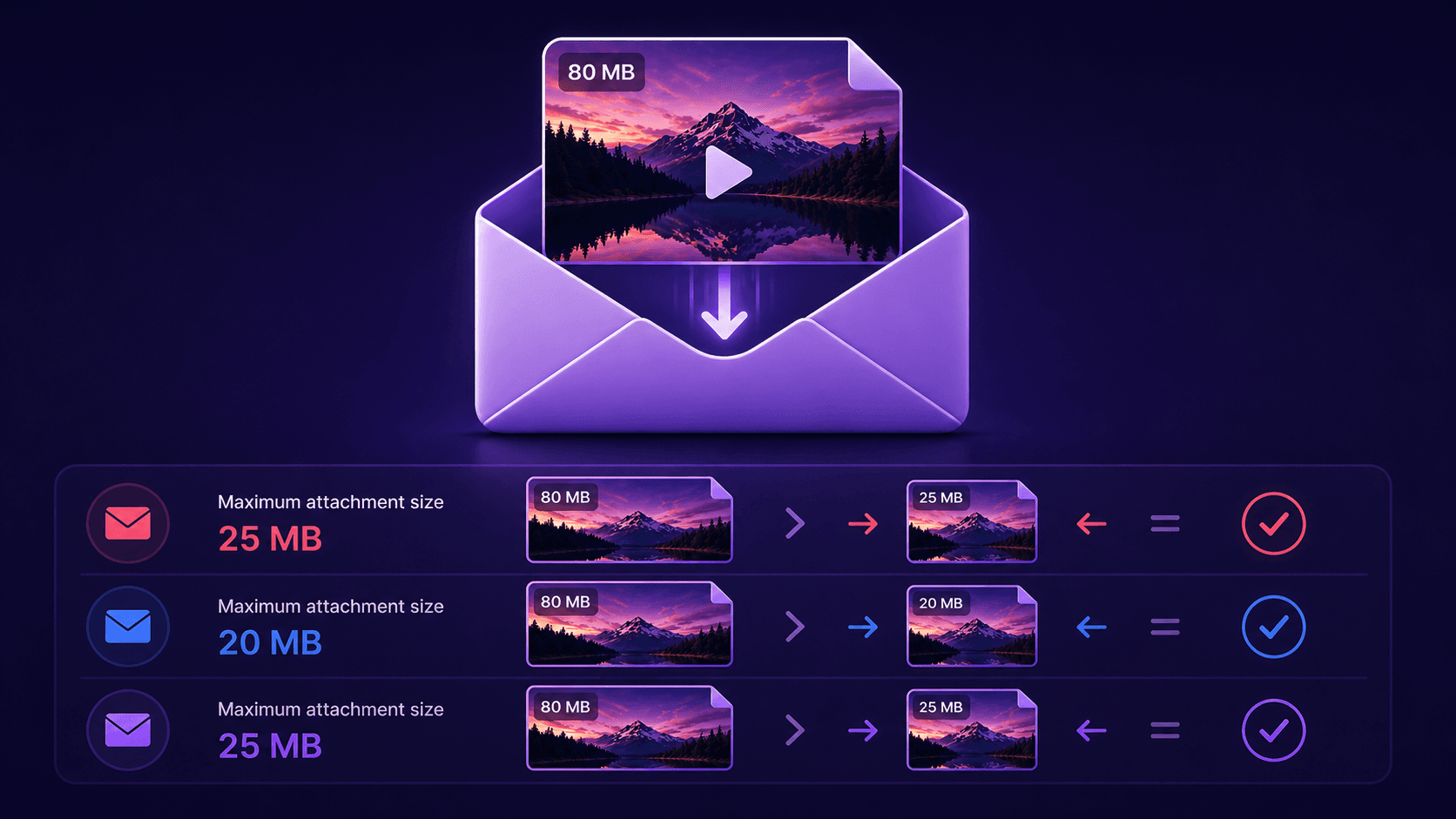
Gmail's attachment limit is 25MB. Outlook's is 20MB. Yahoo Mail allows 25MB. These limits apply to the total size of all attachments combined, not per file. A single one-minute video recorded on a modern phone is already 80 to 150MB, which means it will not fit in any email without compression.
Email Attachment Limits by Provider
- Gmail: 25MB total attachments
- Outlook / Hotmail: 20MB total attachments
- Yahoo Mail: 25MB total attachments
- iCloud Mail: 20MB total attachments
- ProtonMail: 25MB total attachments
These are hard limits. If your attachment exceeds them, the email either fails to send or the provider converts it to a cloud link.
Why a 1-Minute Video Is Already 80MB
Modern phones record video at high bitrates by default. A typical iPhone or Samsung Galaxy records 1080p at 30fps with a bitrate between 10 and 20Mbps. That produces roughly 75 to 150MB per minute of footage.
The math: 15Mbps (typical) x 60 seconds = 900 megabits = 112.5MB for one minute.
How to Compress a Video for Email
- 1Go to CompressYourVideo.com
- 2Select Email as your target platform
- 3Upload your video
- 4The tool compresses to 24MB (Gmail) or 19MB (Outlook) with a safety margin
- 5Download and attach to your email
What Quality You Get at 25MB
The quality depends on how long your video is:
- 15 seconds at 25MB: ~12Mbps video bitrate. Excellent quality at 1080p. Visually identical to the original.
- 30 seconds at 25MB: ~6Mbps. Very good quality at 1080p.
- 1 minute at 25MB: ~3.3Mbps. Clean 720p. Good for most purposes.
- 2 minutes at 25MB: ~1.5Mbps. Watchable 720p. Some softening.
- 3 minutes at 25MB: ~1.1Mbps. Watchable at 480p, but soft at 720p.
- 5 minutes at 25MB: ~0.6Mbps. Noticeably compressed. Only suitable for simple content.
The practical limit: for email attachments, keep videos under 2 minutes for good quality. Beyond that, use a cloud link.
When to Use a Google Drive Link Instead
If your video is longer than 2 minutes, or quality matters (a product demo, a wedding speech, a tutorial), skip the attachment.
- 1Upload the video to Google Drive
- 2Right-click the file, then select Share, then change access to "Anyone with the link"
- 3Copy the link and paste it into your email
Gmail's Auto-Upload Behavior
Gmail has a built-in shortcut: if you try to attach a file larger than 25MB, Gmail automatically offers to upload it to Google Drive and insert a link. The file inherits your Google Drive sharing settings, so you may need to manually change access.
Tips for Email Video Attachments
Use MP4 H.264 format: The most universally compatible format. The recipient can play it on any device without installing additional software.
Name the file clearly: A filename like "product-demo-april-2026.mp4" is far more useful than "VID_20260408_143022.mp4."
Consider the recipient's inbox: A 20MB attachment takes up significant space. For recurring video communications, cloud links are more courteous than large attachments.
At 25MB, a 1-minute video gets about 3.3Mbps of bitrate. That is clean 720p, perfectly watchable for business communications and short demonstrations. A 3-minute video at 25MB gets about 1.1Mbps, which is watchable at 480p but soft at 720p. Know the tradeoff before you hit send.